
How to Deploy a Node.js App on a VPS with Nginx, PM2 and Free SSL

Short answer: to deploy a Node.js app on a VPS, run the app with PM2 so it restarts by itself, put Nginx in front as a reverse proxy, point your domain at the server, and get a free SSL certificate with Let's Encrypt and Certbot. Keep the firewall closed except for SSH, HTTP and HTTPS. The whole job takes about an hour the first time.
This guide is written for developers who have an app that works on their laptop and want it live on a real domain. The commands are for an Ubuntu or Debian server. Replace example.com and myapp with your own names.
What you need before you start
- A cloud server with a public IP address, running Ubuntu or Debian.
- An SSH key to log in.
- A domain name where you can edit DNS records.
- A Node.js app that starts with one command, for example
node server.js, and listens on a port such as 3000.
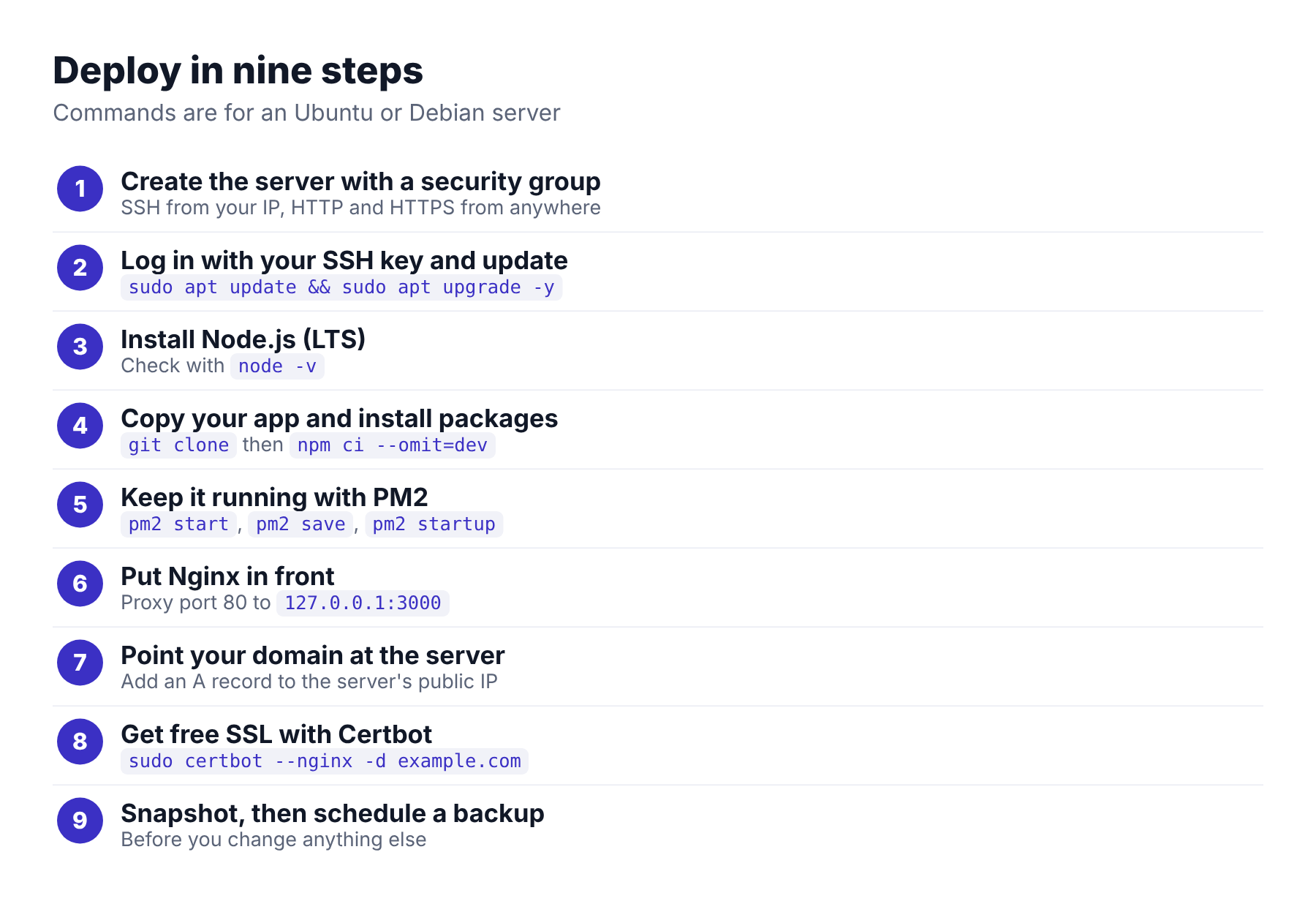
Step 1: Create the server with a firewall
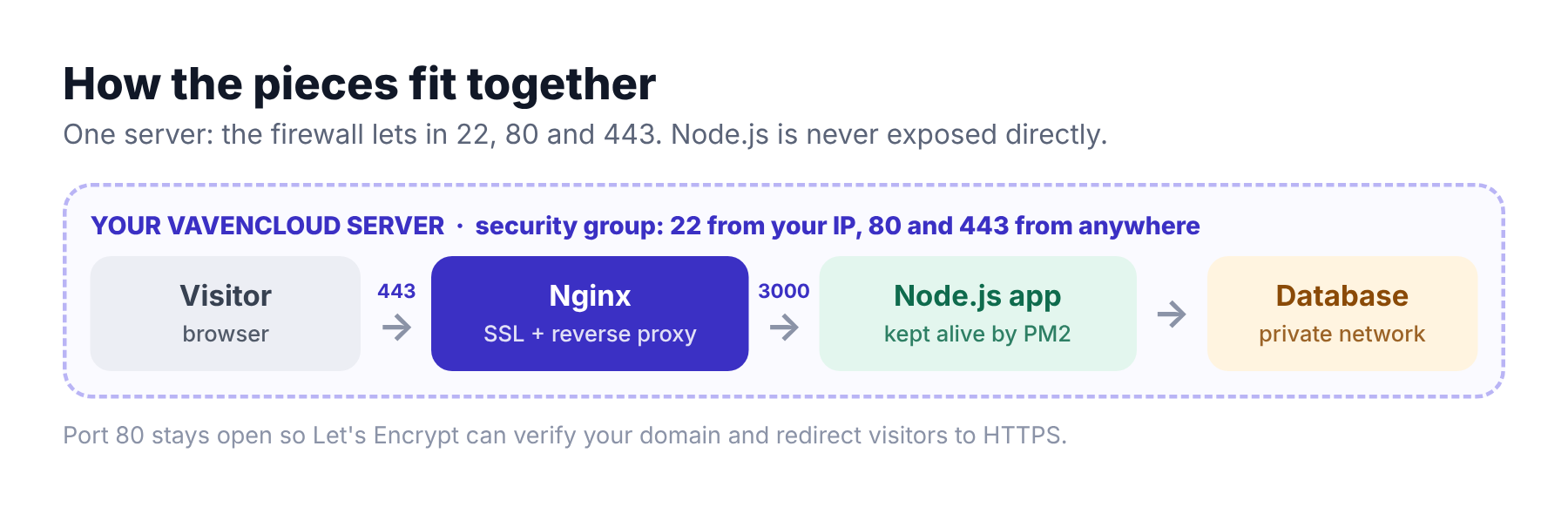
On VavenCloud, choose a region, an operating system and a size, pick an SSH key, and choose Public networking. Then attach a security group with three rules:
- TCP 22 (SSH) from your own IP address.
- TCP 80 (HTTP) from anywhere. Let's Encrypt needs it to verify your domain.
- TCP 443 (HTTPS) from anywhere.
Do not skip the security group. A server created without one has its firewall off, so every inbound port is open. Our guide to securing a new VPS explains why.
Step 2: Log in and update the server
Open the server's SSH Access tab in the dashboard and copy the connection command. Then update the packages.
sudo apt update && sudo apt upgrade -yStep 3: Install Node.js
Install a current LTS version of Node.js. The Node.js website lists the up-to-date install steps for Ubuntu and Debian, and tools such as nvm also work. Then check it.
node -v
npm -v
Step 4: Copy your app and install packages
git clone https://github.com/your-account/your-app.git
cd your-app
npm ci --omit=dev
Keep secrets such as database passwords in environment variables or a .env file that is not in Git. Make your app listen only on the server itself, so the world can reach it only through Nginx:
app.listen(3000, '127.0.0.1');Step 5: Keep the app running with PM2
If you start the app in the terminal, it stops when you log out or it crashes. PM2 is a process manager that restarts it and starts it again after a reboot.
sudo npm install -g pm2
pm2 start server.js --name myapp
pm2 save
pm2 startup
pm2 startup prints one command. Copy it and run it, then run pm2 save again. Use pm2 status to see the app and pm2 logs myapp to read its output.
Step 6: Put Nginx in front
Nginx receives the web traffic on ports 80 and 443 and passes it to your app on port 3000. It also handles SSL.
sudo apt install -y nginxCreate /etc/nginx/sites-available/myapp with this content:
server {
    listen 80;
    server_name example.com www.example.com;

    location / {
        proxy_pass http://127.0.0.1:3000;
        proxy_http_version 1.1;
        proxy_set_header Host $host;
        proxy_set_header X-Real-IP $remote_addr;
        proxy_set_header X-Forwarded-For $proxy_add_x_forwarded_for;
        proxy_set_header X-Forwarded-Proto $scheme;
        proxy_set_header Upgrade $http_upgrade;
        proxy_set_header Connection "upgrade";
    }
}
Enable it, test the configuration and reload Nginx:
sudo ln -s /etc/nginx/sites-available/myapp /etc/nginx/sites-enabled/
sudo rm -f /etc/nginx/sites-enabled/default
sudo nginx -t
sudo systemctl reload nginx
Step 7: Point your domain at the server
In your DNS settings, add an A record for example.com (and one for www) that points to the server's public IP address. DNS changes can take a few minutes to spread. If you want an address that stays yours, VavenCloud offers static IPs as an add-on. Check it from your laptop:
nslookup example.comStep 8: Get a free SSL certificate
Certbot gets a certificate from Let's Encrypt and edits the Nginx file for you.
sudo apt install -y certbot python3-certbot-nginx
sudo certbot --nginx -d example.com -d www.example.com
sudo certbot renew --dry-run
Choose to redirect HTTP to HTTPS when Certbot asks. The package sets up automatic renewal, and the dry run proves that it works. Open https://example.com in a browser to see the padlock.
Step 9: Take a snapshot and schedule a backup
Once the site works, take a snapshot so you can roll back after a bad change, and schedule backups so you have copies away from the server. Our snapshot vs backup guide explains which to use when.
Real-life problems and how to fix them
Here are the problems people run into most often. These are common situations, not customer stories.
"502 Bad Gateway."
What goes wrong: Nginx is running, but nothing is answering on port 3000. The app crashed, started on a different port, or is not running.
The fix: Run pm2 status and pm2 logs myapp. Check that the port in proxy_pass matches the port in your app.
"The app stops when I close the terminal."
What goes wrong: It was started with node server.js and is tied to your session.
The fix: Start it with PM2, then run pm2 save and pm2 startup.
"The app is gone after a reboot."
What goes wrong: PM2 was started, but pm2 startup and pm2 save were not run.
The fix: Run both, then reboot once to confirm.
"Certbot says it cannot verify my domain."
What goes wrong: Port 80 is closed in the security group, or the A record does not point to this server yet.
The fix: Add a TCP 80 rule from anywhere, check the DNS record with nslookup, and run Certbot again.
"The site works on the IP but not on the domain."
What goes wrong: DNS has not updated yet, or the A record points to an old address.
The fix: Wait a few minutes, check the record, and make sure server_name in Nginx lists your domain.
"Too many redirects."
What goes wrong: The domain goes through a proxy such as Cloudflare in a mode that talks to your server over HTTP, while Nginx redirects to HTTPS.
The fix: Once Certbot works, set the proxy's SSL mode to Full (strict).
Common mistakes to avoid
- Exposing port 3000 to the internet. Let only Nginx reach it.
- Running the app as root. Use a normal user.
- Committing secrets to Git. Use environment variables.
- Skipping updates. Run
apt upgraderegularly and update your packages. - No backup. Schedule one before you need it.
When one server is not enough
When traffic grows, run two or more copies of the app on separate servers behind a load balancer. Our guide on traffic spikes and load balancers shows how. Put the database on its own private server too, as described in managed vs self-hosted database.
Frequently asked questions
How do I deploy a Node.js app on a VPS?
Install Node.js, copy your app, run it with PM2, put Nginx in front as a reverse proxy, point your domain at the server, and get a free SSL certificate with Certbot.
Do I need Nginx for a Node.js app?
You can run Node.js without it, but Nginx is the usual choice. It handles SSL, serves static files quickly, and keeps your app off the public ports.
Is PM2 better than systemd?
Both keep your app running. PM2 is easier for Node.js beginners and shows logs and status in one place. systemd is built into the system and needs no extra tool. Pick one and use it for all apps.
Is Let's Encrypt really free?
Yes. Certificates cost nothing and last for a short period, so automatic renewal matters. Certbot sets it up and you can test it with certbot renew --dry-run.
Can I use SSL without a domain name?
Let's Encrypt is built for domain names. For a quick test without a domain, use HTTP on the IP address, and add a domain before real users arrive.
How much memory does a Node.js app need?
It depends on your app. Many small apps run comfortably on a small server. Watch memory with pm2 monit for a week, then resize if needed. On VavenCloud you can move to a larger size from the dashboard.
Keep reading
- Firewall rules explained: ports, CIDR and security groups
- How to secure a new VPS: a first-hour checklist
- Self-hosted AI on a VPS: what you can run and how to secure it
Stuck on a step? Open a support ticket and tell us what you are running. Our team will help you.